
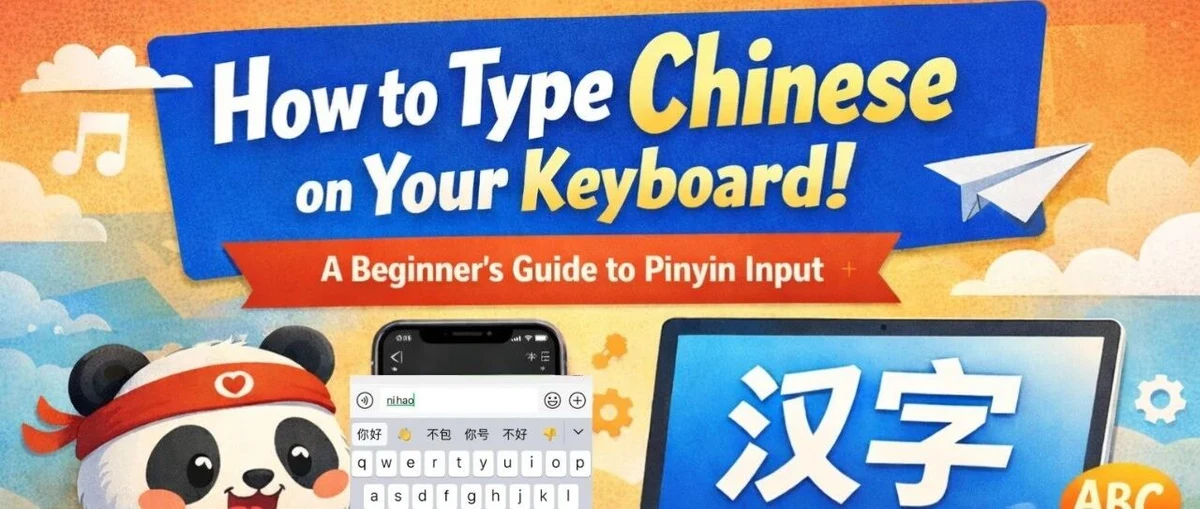
Learning Chinese is not only about speaking and reading — typing matters too. 😊
Many beginners feel nervous when they first try to type in Chinese, but the good news is that it is much easier than it looks.
The key tool is Pinyin. Once you know how Pinyin works, you can type Chinese characters quickly on your phone, tablet, or computer. And here is one very important point from the beginning:
When you want to type Chinese characters, you usually type the Pinyin letters without tone marks, and then choose the correct character from the candidate list. When you want to type Pinyin itself for notes, homework, or teaching materials, that is a different task. Apple’s own Pinyin examples on Mac show users typing plain Pinyin codes such as “ping” and then selecting the character, and Apple also notes that v is used for ü in Pinyin input.
What Is Pinyin?
Pinyin is the standard Romanization system for Mandarin Chinese. In simple words, it uses the Latin alphabet to represent the pronunciation of Chinese syllables.
For learners, Pinyin is helpful because it lets you:
understand pronunciation more clearly
look up new words more easily
type Chinese characters efficiently
review tones when studying vocabulary
So, Pinyin is not just a pronunciation tool — it is also a practical typing tool in daily Chinese learning.
A Very Important Difference: Typing Chinese vs. Typing Pinyin
This is where many learners get confused.
When you type Chinese characters, you normally enter the syllables in Pinyin and then select the correct characters.
For example:
我会用拼音打中文。
I can type Chinese with Pinyin.
老师说,不用打声调,也可以输入汉字。
The teacher said that you can type Chinese characters without entering tone marks.
我先输入 nihao,再选“你好”。
I first type nihao, and then select “hello.”
So remember this simple rule:
Typing characters = usually no tone marks
Typing Pinyin itself = you may need tone marks
That distinction makes Chinese typing much easier to understand.

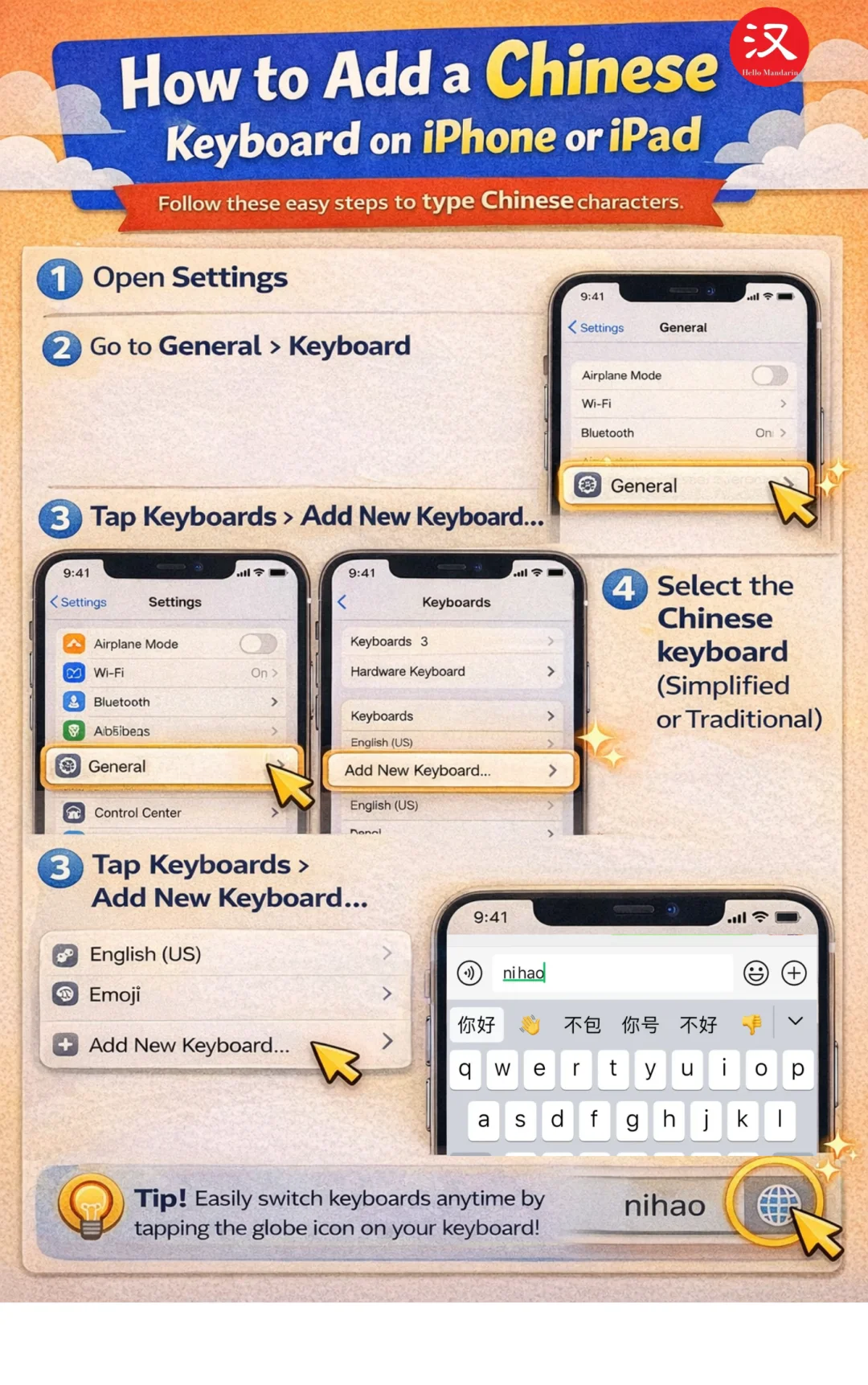
How to Add a Chinese Keyboard on iPhone or iPad
On iPhone or iPad, the basic path is:
Go to Settings > General > Keyboard > Keyboards > Add New Keyboard
Then choose the Chinese keyboard you want.
After that, you can switch keyboards while typing. Apple’s official instructions confirm this setup path for iPhone and iPad.
For most learners, this keyboard is mainly used to type Chinese characters through Pinyin input. If your goal is to write tone-marked Pinyin for class notes or teaching materials, that is a more specialized need than normal Chinese character input. Apple documents that tone-mark entry is supported on Apple devices through diacritic-capable layouts such as ABC Extended, especially with external keyboards.
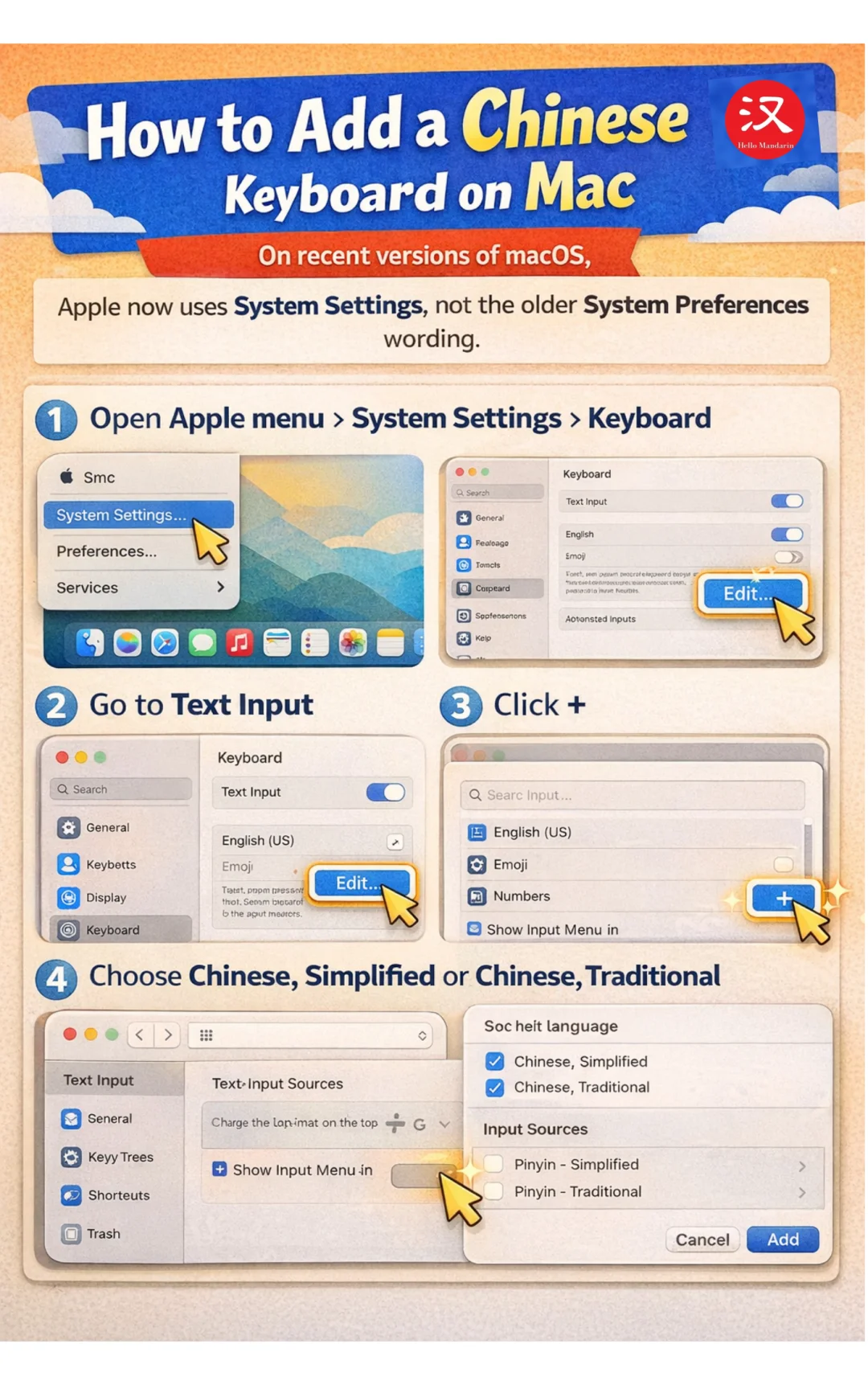
How to Add a Chinese Keyboard on Mac
On recent versions of macOS, Apple now uses System Settings, not the older System Preferences wording.
Here is the correct path:
Open Apple menu > System Settings > Keyboard
Go to Text Input
Click Edit
Click +
Choose Chinese, Simplified or Chinese, Traditional
Then add the input source you want, such as Pinyin - Simplified or Pinyin - Traditional.
After you switch to the Chinese Pinyin input source, you can type Pinyin and select characters from the candidate window.
For example:
他在电脑上输入 zhongwen,然后选“中文”。
He types zhongwen on the computer and then selects “Chinese.”
Apple also notes two very useful details for Mac users:
When a syllable is ambiguous, you can use an apostrophe, such as xi’an.
And when you need ü, you usually type v. For example, lv can help you get characters such as 绿.
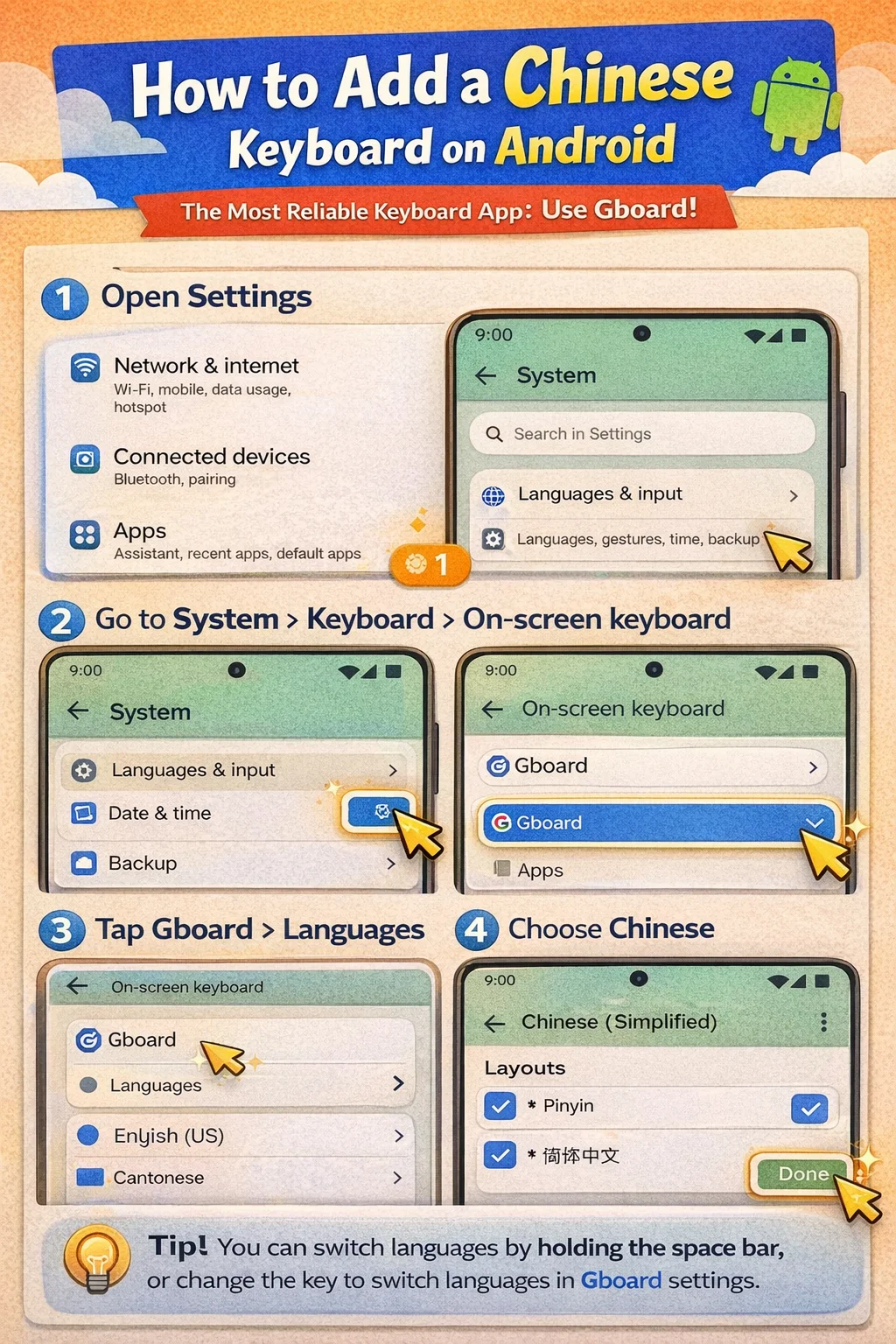
How to Add a Chinese Keyboard on Android
For Android, the most reliable official recommendation is Gboard.
The usual steps are:
Open Settings
Go to System > Keyboard > On-screen keyboard
Tap Gboard > Languages
Choose Chinese
Turn on the layout you want
Tap Done
Google’s help page also shows that users can switch languages by holding the space bar, and the language-switch key can be enabled in Gboard settings.
So in your article, it is better to recommend Gboard directly instead of presenting Google Pinyin Input as the default choice, because Google’s current official help focuses on Gboard.
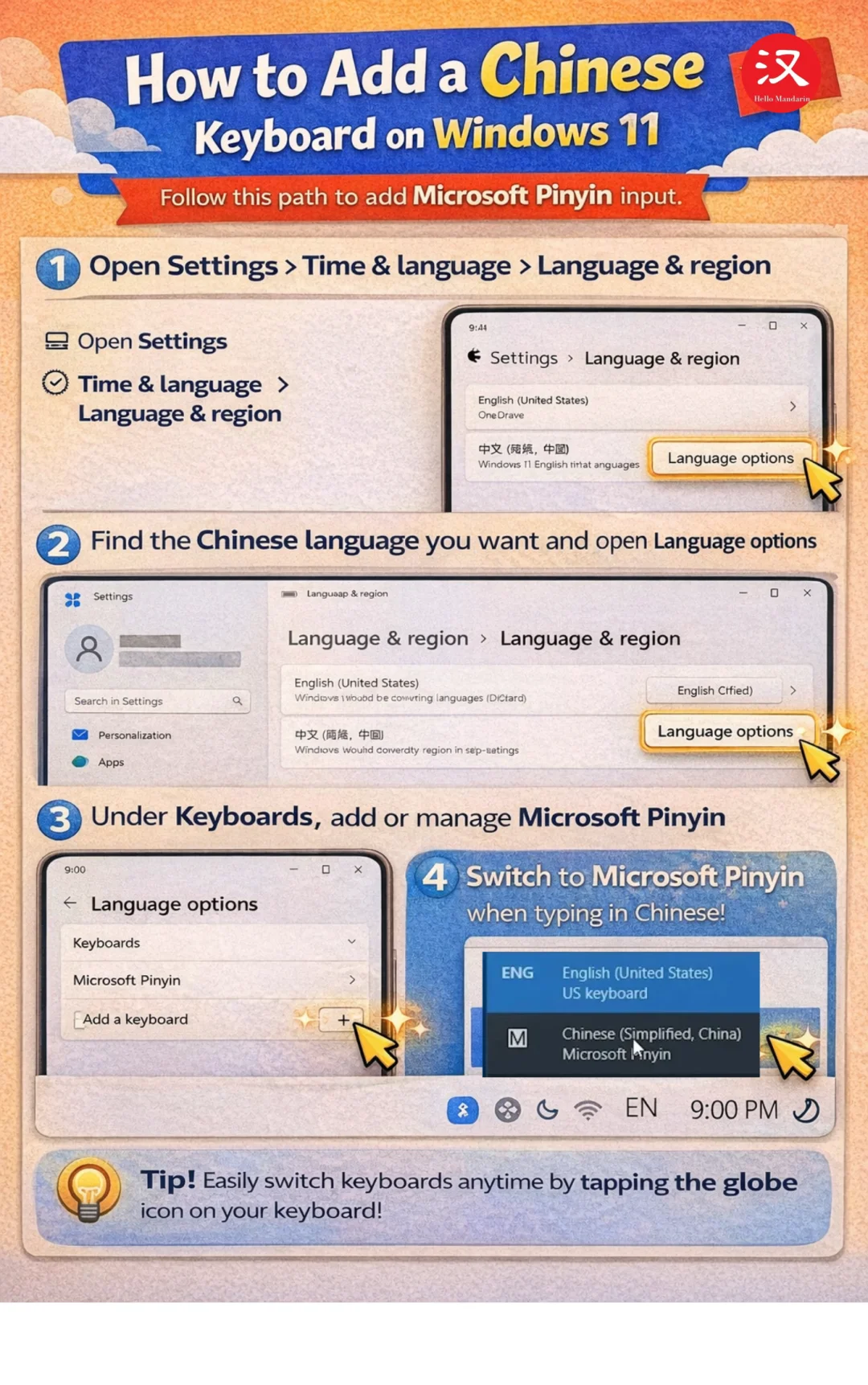
How to Add a Chinese Keyboard on Windows 11
On Windows 11, the path is:
Open Settings > Time & language > Language & region
Find the Chinese language you want
Open Language options
Under Keyboards, add or manage Microsoft Pinyin
Microsoft’s official support page uses this path and refers to Microsoft Pinyin in Windows 11 settings.
This means your original Windows section was close, but it is better to present it more cleanly and directly in the article.
How to Type ü in Pinyin
This is another point many students ask about.
In many Chinese Pinyin input systems, especially on Mac’s Pinyin input, v is used in place of ü.
For example:
输入 lv,你就可以找到“绿”。
Type lv, and you can find the character “green.”
输入 nv,你就可以找到“女”。
Type nv, and you can find the character “woman/female.”
Apple explicitly notes this v = ü convention in its Mac Pinyin input documentation.
What If You Need to Type Pinyin with Tone Marks?
This is common for teachers and serious learners.
If you are writing vocabulary lists, lesson notes, or pronunciation guides, you may need to type nǐ hǎo instead of just nihao.
On Apple devices with an external keyboard, Apple documents that ABC Extended can be used to type tone marks for Mandarin Pinyin orthography. Apple also notes on Mac that ABC - Extended can be used to add tone marks when typing Pinyin.
So a practical way to explain this to students is:
Use the Chinese Pinyin keyboard when your goal is to type Chinese characters.
Use ABC Extended or another diacritic-friendly layout when your goal is to type Pinyin with tone marks.
That is a much clearer explanation than mixing the two together.
Final Tips for Learners 🌟
Do not worry if Chinese typing feels slow at first. That is completely normal.
Start with very common words:
你好
谢谢
中国
老师
学生
The more you type, the faster you will recognize character choices and common patterns.
Typing Chinese is not something separate from learning Chinese — it is part of learning Chinese. Once you get used to Pinyin input, reading, writing, reviewing vocabulary, and chatting in Chinese all become much easier.
In one sentence:
Learn Pinyin well, understand the difference between typing characters and typing Pinyin, and Chinese keyboard input will become much more natural.